> For the complete documentation index, see [llms.txt](https://docs.agenticflow.ai/llms.txt). Markdown versions of documentation pages are available by appending `.md` to page URLs; this page is available as [Markdown](https://docs.agenticflow.ai/features/tasks.md).
# Tasks
Tasks are conversations between users and agents that can be triggered, scheduled, and approved.
The Tasks page is your central dashboard for managing everything your AI agents do. Think of it as a mission control center where you can see, review, and interact with all your agent's work in one place.
> \[!NOTE] **Coming Soon**: Tasks will expand to include **Workflow runs** and **Workforce (Multi-Agent System) runs**, giving you a unified view of all AI operations in your workspace.
## Accessing Tasks
You can access the Tasks page by:
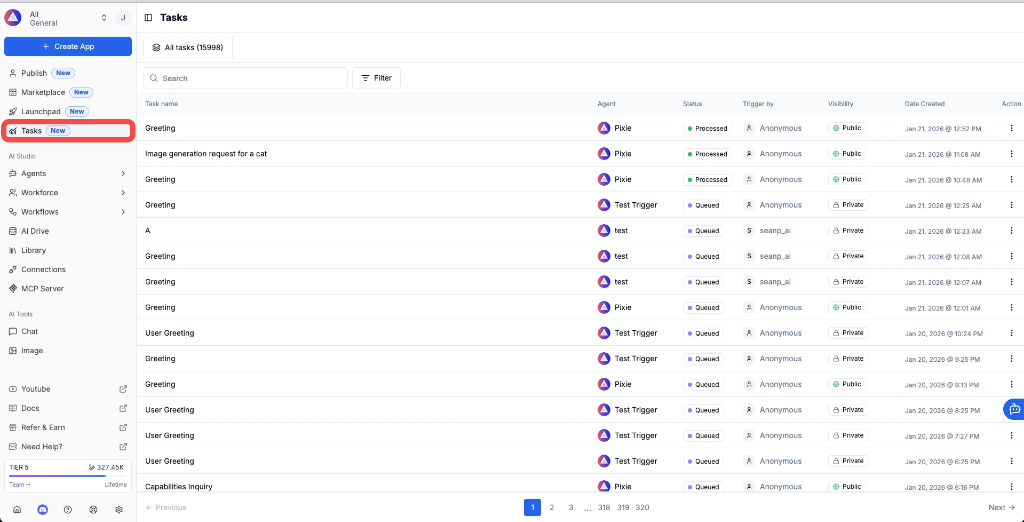
1. **Sidebar**: Click the **Tasks** button in the left sidebar
2. **Direct URL**: Navigate to `https://agenticflow.ai/app/workspaces/{{YOUR_WORKSPACE_ID}}/tasks`
## Page Layout
The Tasks page is divided into three main sections:
### Header
* **Task Count**: Displays the total number of tasks (e.g., "All tasks (15998)")
* **Search**: Search tasks by name or content
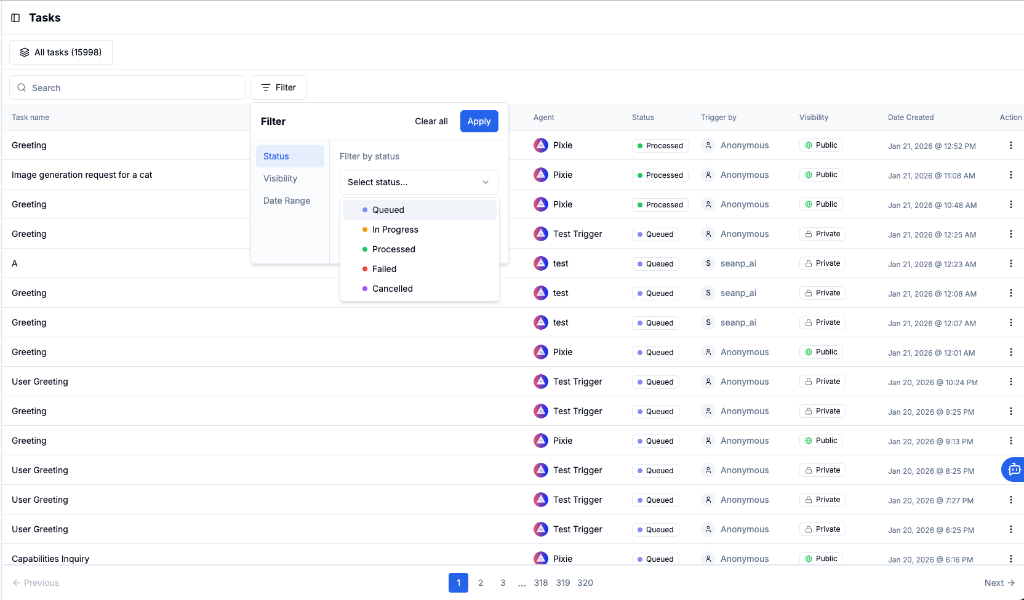
* **Filter**: Filter tasks by:
* **Status**: `Queued`, `In Progress`, `Processed`, `Failed`, `Cancelled`
* **Visibility**: Public or Private
* **Date Range**: Filter by creation date
### Tasks Table
The main table displays all tasks with the following columns:
| Column | Description |
| ---------------- | ------------------------------------------ |
| **Task Name** | The name or title of the conversation/task |
| **Agent** | The agent that executed this task |
| **Status** | Current status of the task |
| **Trigger by** | User or system that triggered the task |
| **Visibility** | Whether the task is Public or Private |
| **Date Created** | When the task was created |
| **Action** | Click to view thread details |
### Task Statuses
| Status | Description |
| --------------- | ------------------------------- |
| **Queued** | Task is waiting to be processed |
| **In Progress** | Task is currently executing |
| **Processed** | Task completed successfully |
| **Failed** | Task encountered an error |
| **Cancelled** | Task was manually cancelled |
### Pagination
Navigate through tasks using the pagination controls at the bottom of the table. You can jump to specific pages or use Previous/Next navigation.
## Task Details
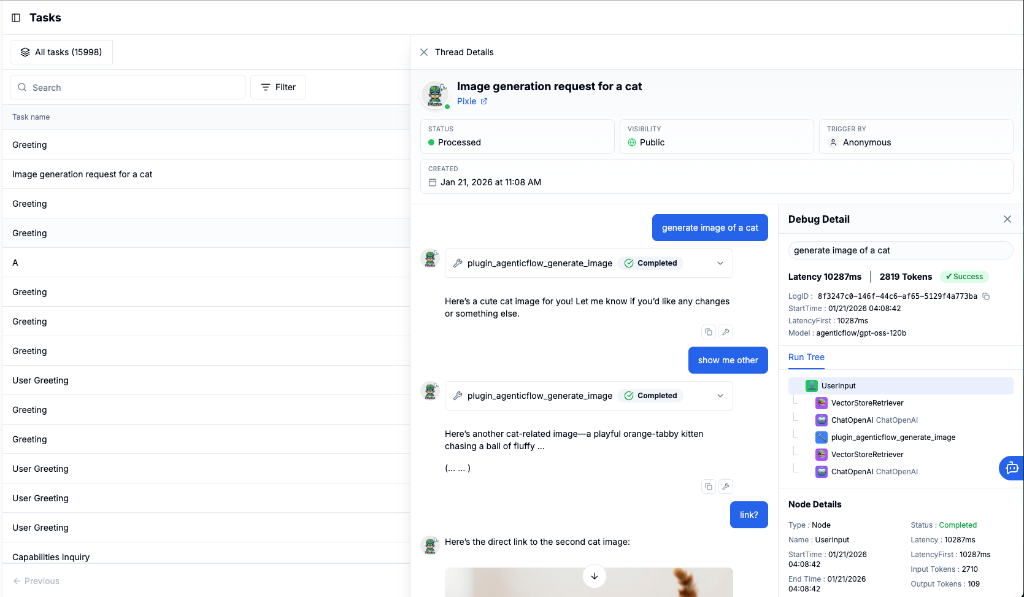
Click on any task row to open the **Thread Details** right panel:
### Thread Info
* **Task Name**: Title of the conversation
* **Agent**: Hyperlink to the agent that executed this task (click to view agent details)
* **Status**: Current task status
* **Visibility**: Public or Private
* **Trigger by**: User or system that initiated the task
* **Created**: Date and time when the task was created
### Conversation View
The side panel renders the full conversation between the user and agent, including:
* User messages
* Agent responses
* Tool/plugin calls with completion status
### Debug Details
Click the **Debug** button on any message to view detailed execution information including latency, token usage, and the complete Run Tree showing each step of the agent's execution flow.
## Coming Soon
* **Workflow Runs**: Monitor and manage workflow executions
* **Multi-Agent System Runs**: Track complex multi-agent orchestrations
***
> \[!TIP] Use the Tasks page to debug agent behavior, analyze performance patterns, and ensure your AI systems are running smoothly.