> For the complete documentation index, see [llms.txt](https://docs.agenticflow.ai/llms.txt). Markdown versions of documentation pages are available by appending `.md` to page URLs; this page is available as [Markdown](https://docs.agenticflow.ai/integrations/agenticflow-mcp/connecting-to-agenticflow-mcp.md).
# Connecting to AgenticFlow MCP
Learn how to get started and plug AgenticFlow into your AI tool.
***
This guide walks you through connecting your AI tool to AgenticFlow using the Model Context Protocol (MCP).
You can connect through AgenticFlow's in-app directory of featured AI tools, or by finding AgenticFlow MCP in your AI tool's directory. Other programs that are MCP clients, but don't yet have a directory, can connect manually using AgenticFlow MCP's public URL (`https://mcp.agenticflow.ai/mcp`) as a custom connection.
Once connected, your tool can request live context from a user's AgenticFlow workspace based on their access and permissions. This includes workflows, agents, and data.
## Connect through ChatGPT
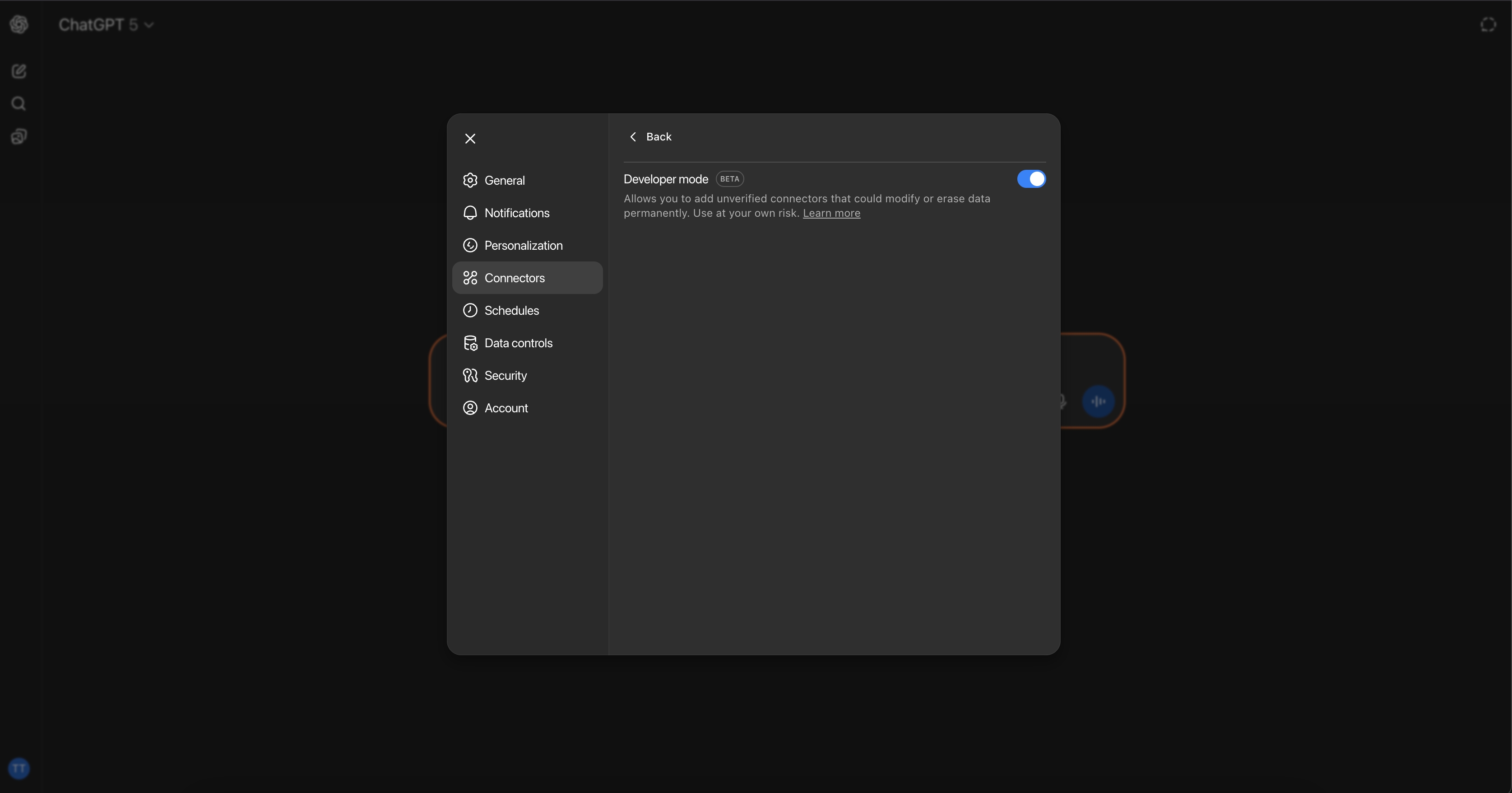
1. Log into ChatGPT and enable Developer mode in ChatGPT settings.
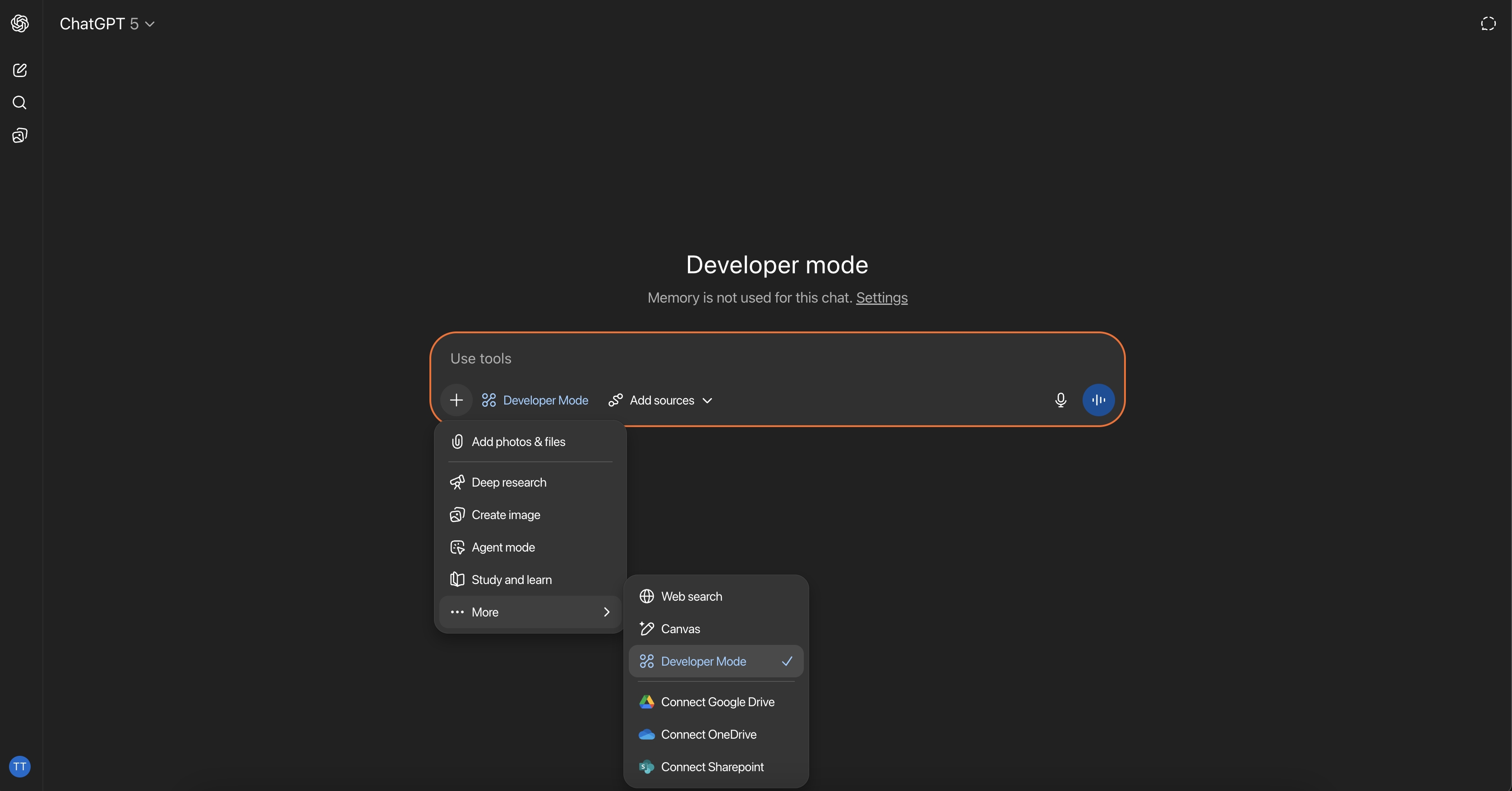
2. In the chat interface, select **Developer mode**
3. Select **Add sources** and fill in the required information:
* Name: **AgenticFlowMCP**
* MCP Server URL: `https://mcp.agenticflow.ai/mcp`
* Authentication: OAuth
4. Click **Create** and ChatGPT will redirect you to to complete the connection
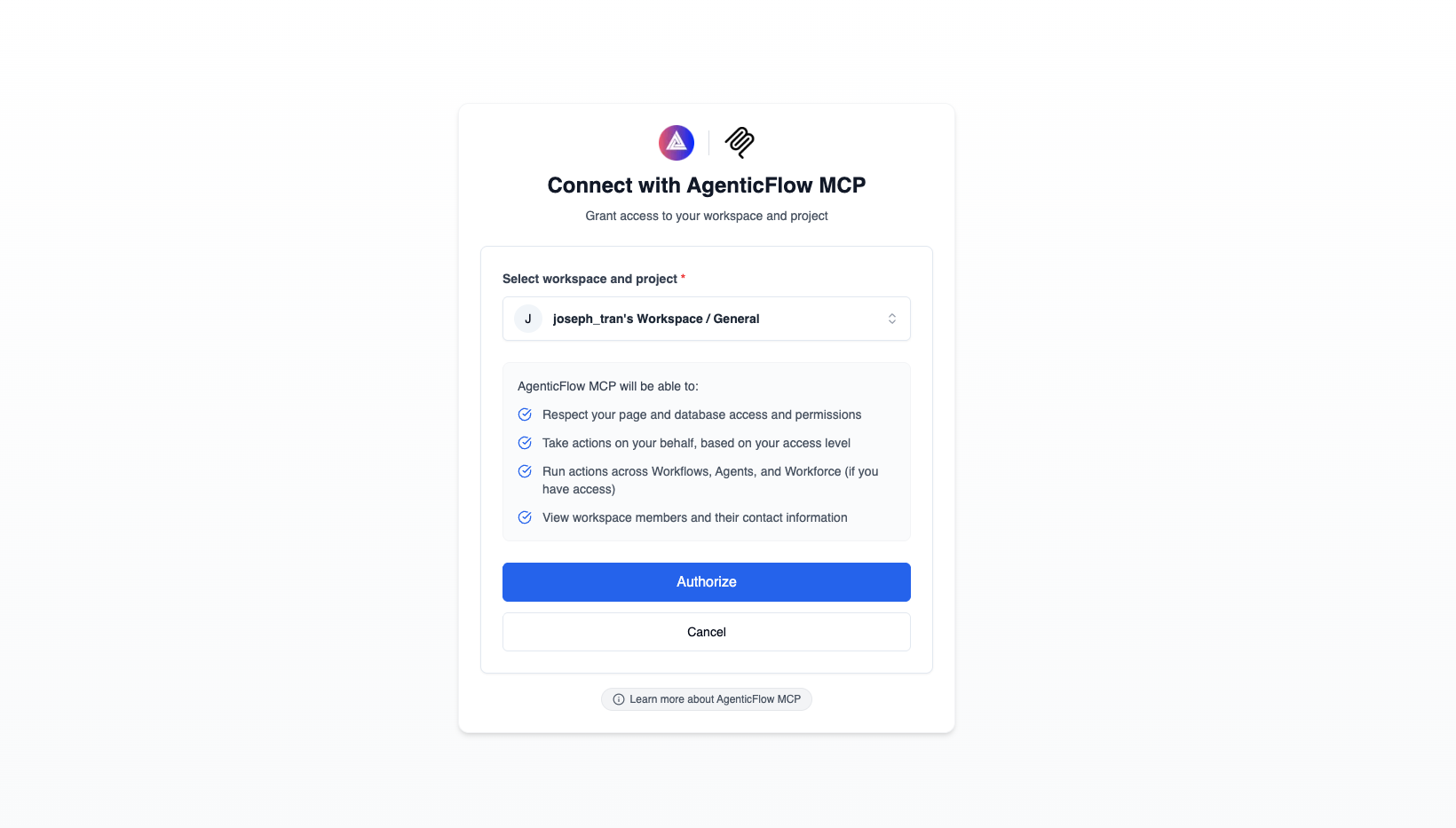
5. At the connection interface, log in if you haven't already, then select the workspace and project you want to connect, and click **Connect**
## Connect through Claude.ai
1. Log into Claude.ai and go to the connectors page in Claude settings.
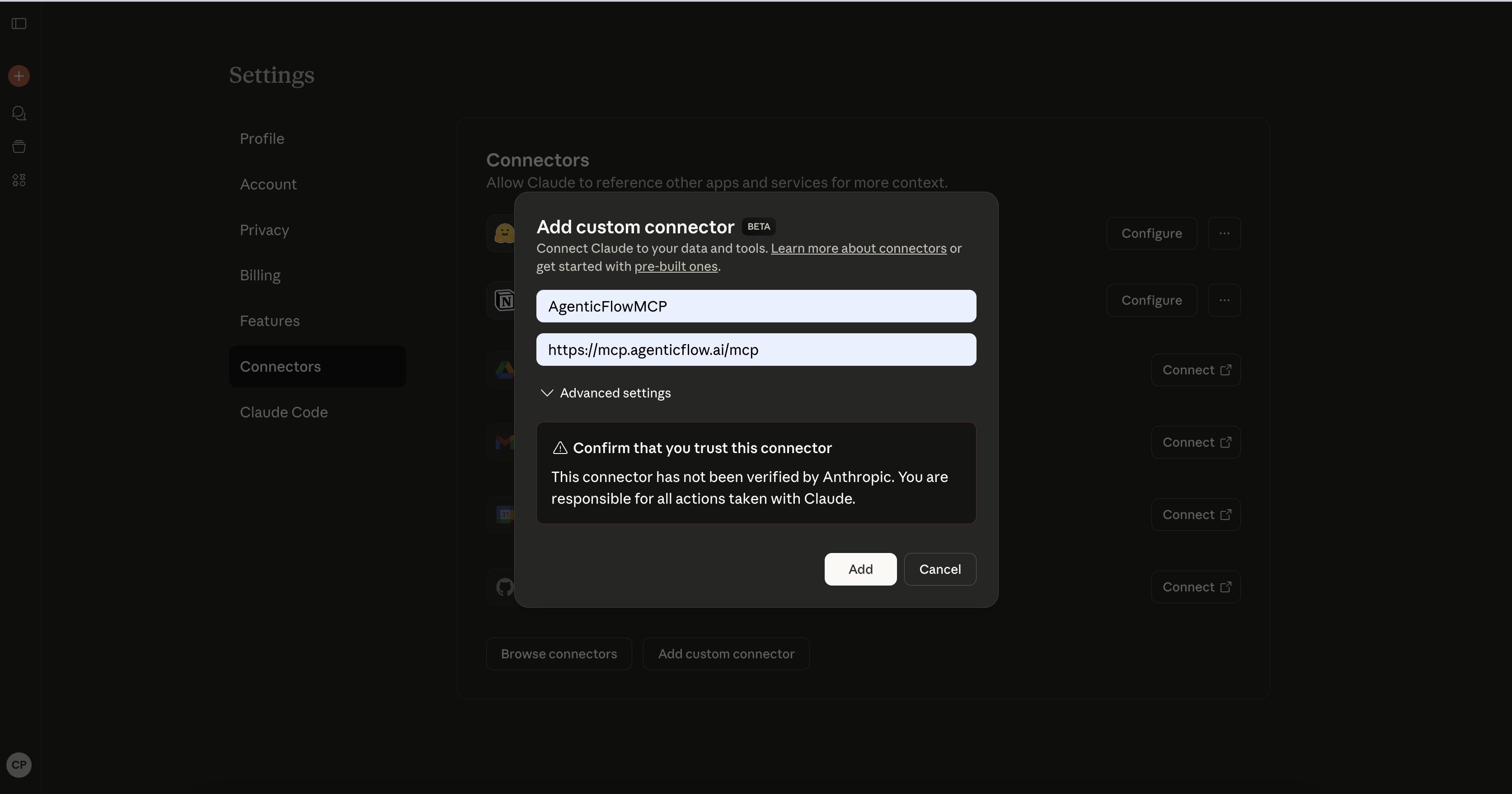
2. Click **Add custom connecter** and fill in the required information:
* Name: **AgenticFlowMCP**
* Remote MCP server URL: `https://mcp.agenticflow.ai/mcp`
3. Click **Add** and Claude.ai will redirect you to to complete the connection
4. At the connection interface, log in if you haven't already, then select the workspace and project you want to connect, and click **Connect**
## Connect through your AI tool
To connect, search for "AgenticFlow MCP" in your tool's MCP directory or use these connection methods:
### Streamable HTTP (Recommended)
* **URL:** `https://mcp.agenticflow.ai/mcp`
#### Via OAuth
Use this method if your AI tool supports OAuth authentication:
```json
{
"mcpServers": {
"AgenticFlow": {
"url": "https://mcp.agenticflow.ai/mcp"
}
}
}
```
#### Via Header (API Key, Workspace ID and Project ID)
Use this method if your AI tool supports custom headers. You'll need to provide:
* Your [AgenticFlow API Key](/developers/api-keys.md)
* Your Workspace ID
* Your Project ID
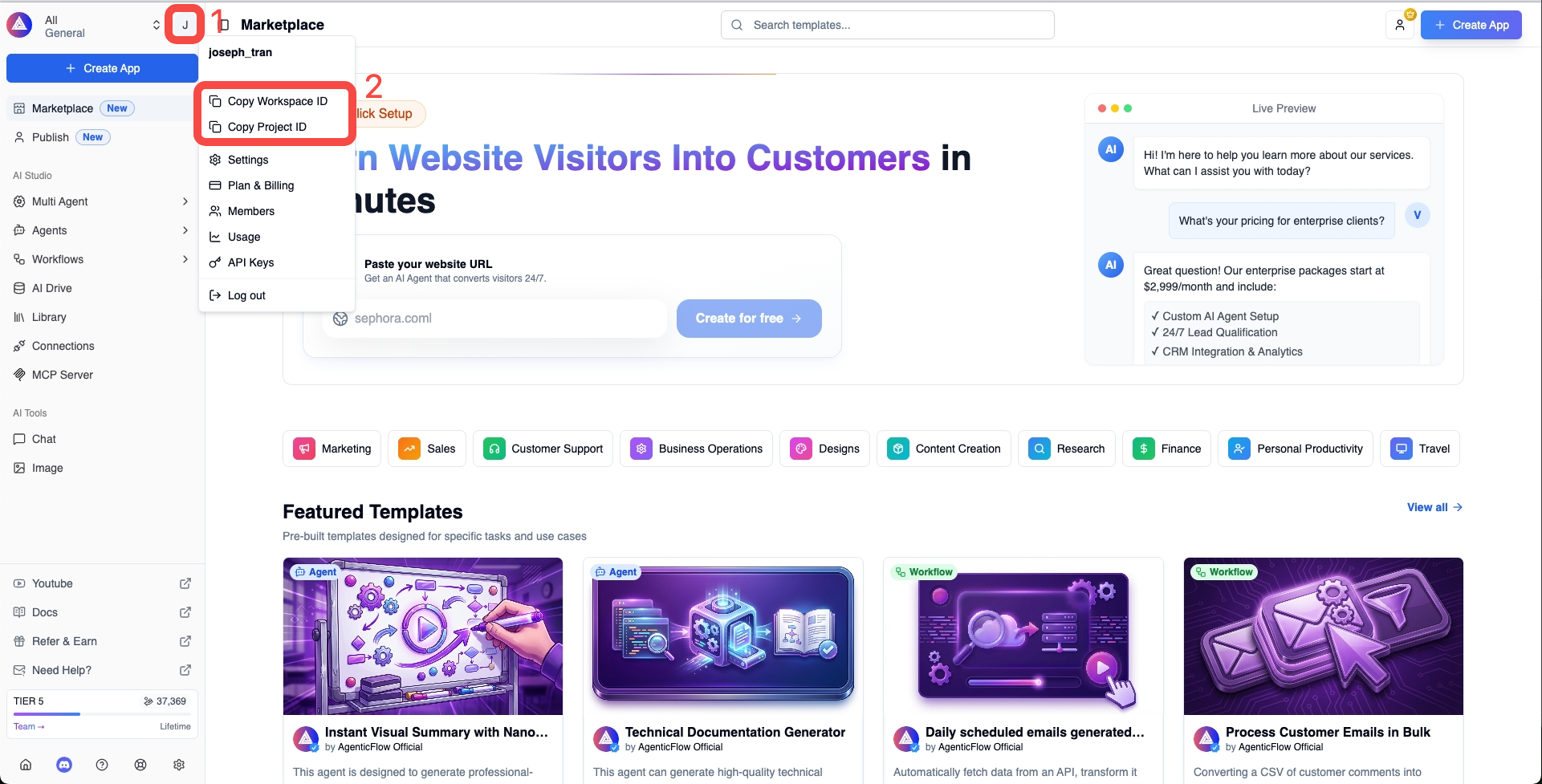
**To get your Workspace ID and Project ID:**
1. Log into [AgenticFlow](https://agenticflow.ai)
2. Click on your avatar in the top right corner
3. A modal will appear showing your Workspace ID and Project ID
4. Click to copy each value
**JSON config:**
```json
{
"mcpServers": {
"AgenticFlow": {
"url": "https://mcp.agenticflow.ai/mcp",
"headers": {
"Authorization": "Bearer ",
"x-workspace-id": "",
"x-project-id": ""
}
}
}
}
```
Replace ``, ``, and `` with your actual values.
## Troubleshooting connection issues
If you're experiencing issues connecting your AI tool to AgenticFlow MCP, here are some common solutions:
1. **Check MCP Client Support**
First, verify that your AI tool supports MCP clients and can connect to MCP servers. Not all AI tools have this capability built-in yet.
2. **Verify Remote Server Support**
Some AI tools have MCP clients but don't support remote connections.
3. **Request MCP Support**
If your AI tool doesn't support MCP at all, we recommend reaching out to the tool's developers to request MCP server connection support. This will help expand the ecosystem of MCP-compatible tools.